Free Outreach Email Generator
Create personalized outreach emails for guest posting, PR and link building with the free TrustLinkSEO Outreach Email Generator. Generate drafts in seconds.
Outreach Email Generator
Paste your article link below. The title is read automatically and two customized emails are written for you.
Published Article
Title not loading? Paste the article instead
Fine-tune
Your Details
Your details are saved automatically in this browser, so they will be here next time.
Email options
Saved articles
Your emails will show up here after you add the article and your details and press Generate emails.
To keep emails out of spam
- Send from your own domain with SPF, DKIM and DMARC set up.
- Send plain text, with no images, no attachments and no tracking pixels.
- Keep to a small daily volume per inbox and warm new inboxes first.
- Send to real, verified addresses only. Bounces hurt your sender reputation.
- Use Regenerate so every recipient gets different wording.
About Outreach Email Generator
An outreach email generator is a tool that writes the first message you send to SEO clients you want to work with. Instead of starting from a blank page, you give the tool the context it needs and get a draft you can edit and send in a minute.
Our Outreach Email Generator is built for one specific job: writing outreach emails from a client published article. Paste the link to a press release, guest post or news piece, and the tool uses the title and key details from that article to write two personalized emails with subject line options.
How to Use the Outreach Email Generator
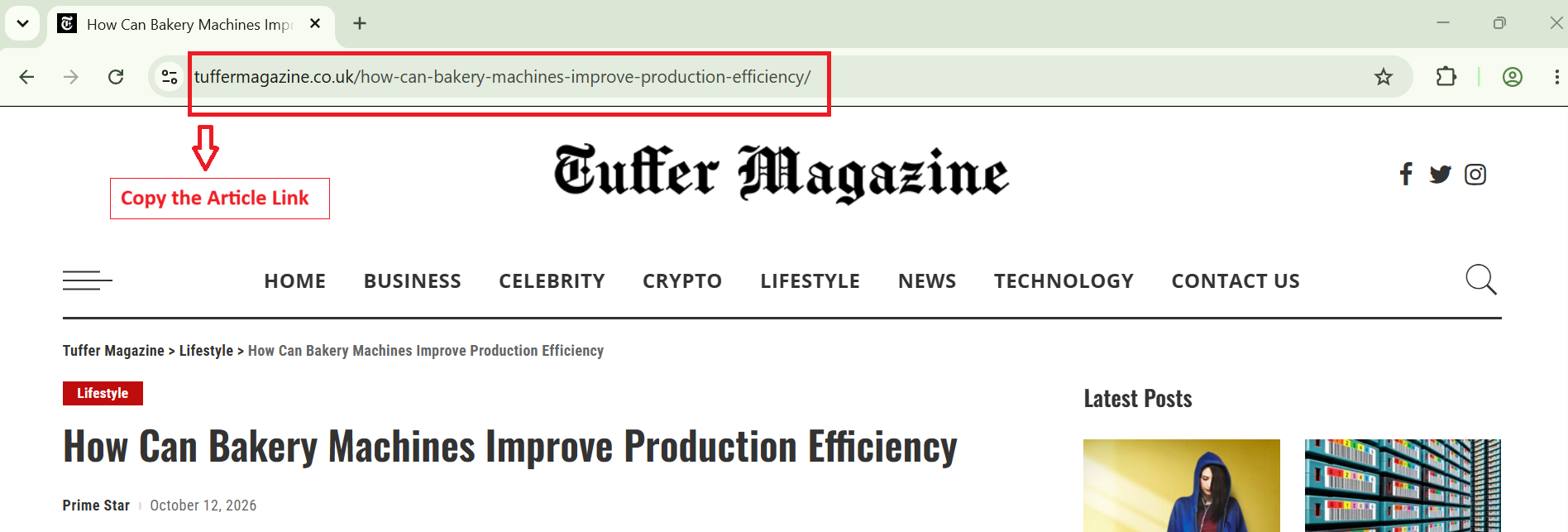
Step1: Copy your client article link
When you are hunting for clients through blog websites, you have to copy the link to the client’s already published article.
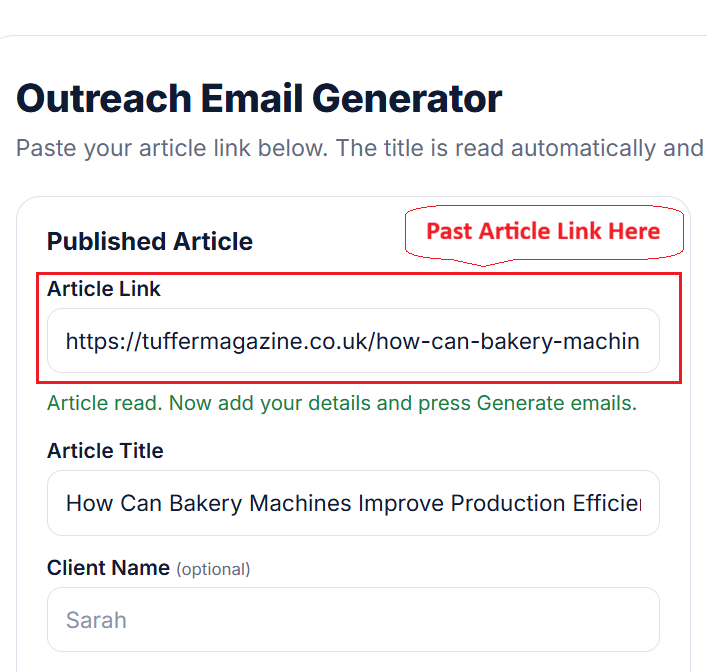
Step 2: Paste the article link
Add the link to the published article. The tool reads the page and fills in the article title.
If the site blocks automatic reading, correct the title yourself and use the paste box to add the article text.
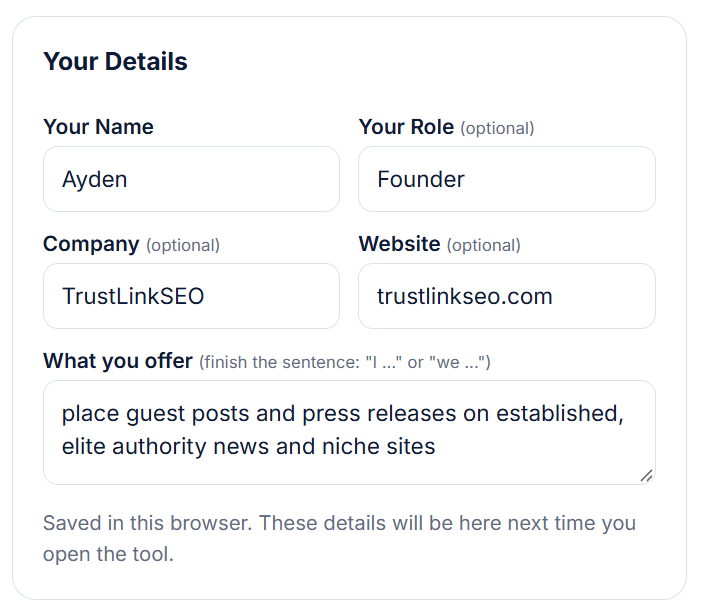
Step 3: Add your details
Enter your name and describe what you offer. Your role, company and website are optional. Your details are saved in your browser, so you only type them once.
Step 4: Choose your email options
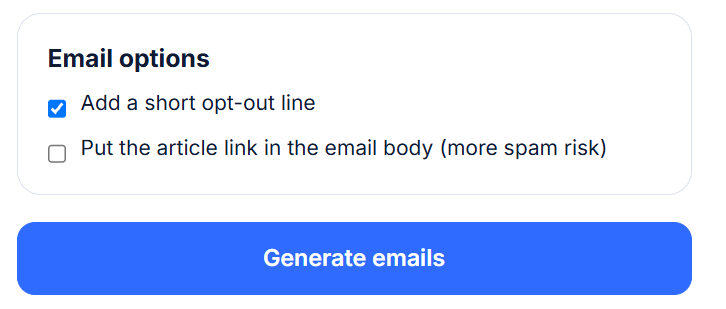
Decide whether to add a short opt-out line and whether to include the article link in the body. Leaving the link out is the safer choice for inbox placement.
Step 5: Generate, edit and copy
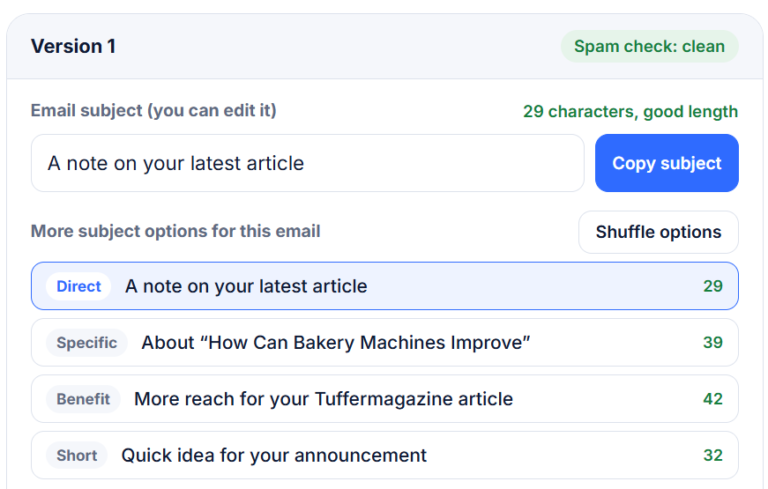
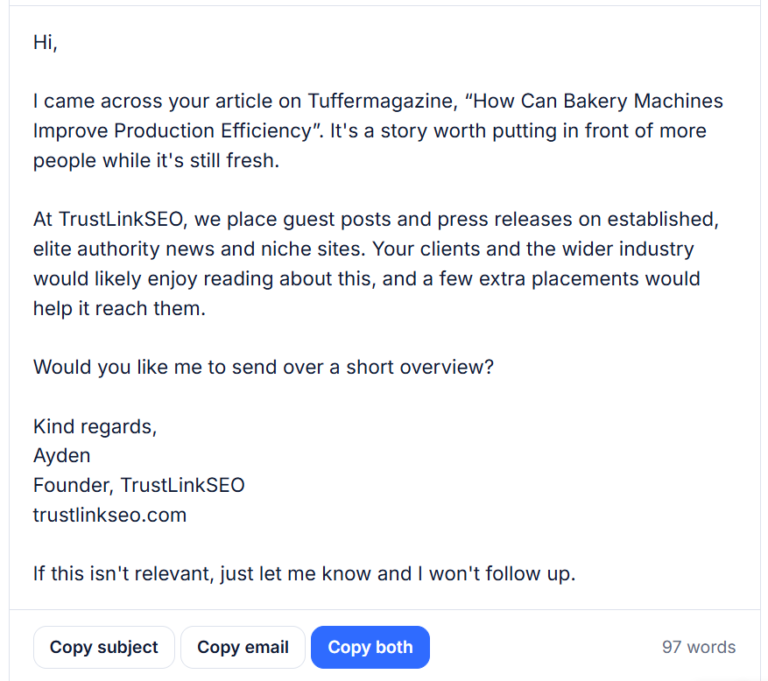
Press Generate emails. You get two versions, each with a subject line you can edit and four more subject options. Adjust anything you like, copy the subject and the email, and send them from your own account.
What Makes a Good Outreach Email?
The emails this tool writes follow a few simple rules that work well for cold outreach:
- Start with the article. Open with what you noticed in their work.
- Keep it short. A few short paragraphs are enough. Long emails get skimmed or skipped.
- Say what you offer in one sentence. Make it clear and specific, and connect it to their article.
- End with one easy question. One question is easier to answer than three requests.
- Write like a person. Plain text, no heavy formatting, no hype.
Who Is This Tool For?
- Link building and SEO agencies reaching out to companies that have just published a press release or announcement.
- Guest post and PR distribution providers who want to offer extra placements for a story that is already live.
- Freelancers and consultants who do not have a company name or website and still want professional emails.
- Marketing teams that need a fast first draft for each prospect and a consistent tone.
Start Sending Better Outreach Emails
Scroll up, paste an article link, add your details and generate your first two emails. Review the text, make it sound like you, and send it. Every email takes about a minute instead of ten.
Frequently Asked Questions
An outreach email generator writes the first message you send to a prospect. This one is built for outreach based on a published article. You paste the link to an article, add your own details, and it writes two ready-to-edit emails with subject line options.
You have to paste the link to the client’s published article into the box, such as a press release or a guest post. The tool reads the page and fills in the article title and key details. Add your name and what you offer, press Generate emails, and you get two different emails, each with four subject line options.
Some websites block automatic reading. In that case the title is built from the link, and you can correct it yourself. Open the paste box, add the article text, and generate the emails as normal.
No. Your role, company and website are optional. If you leave the company out, the emails are written in the first person (I) instead of “we”, so they still sound natural for freelancers and solo consultants.
Yes. You can edit the email text directly in the page before you copy it. The subject line box shows a live character count and a spam check, and the Shuffle options button gives you new subject ideas for that email.
The emails are short, plain text, personal, and end with a single question. Each one is checked for spam trigger words, exclamation marks, extra links and length. Inbox placement also depends on your sending domain (SPF, DKIM and DMARC), the quality of your email list and your sending volume, so no tool can guarantee it.
No. You copy the subject and email, then send them from your own email account or outreach software.